Holio Ordermatch: Match a purchase order to its invoice
Work from the purchase order: find its invoice, link the two, and verify the match before it reaches the accounts.
Working from the order, when you know which order you are chasing.
There are two ways round this job, depending on what is in front of you. This guide starts from the purchase order. Starting from the invoice instead? See Match an invoice to its purchase order.
Before you start
The first time you sign in to Holio Ordermatch you accept a Terms of Service. Your data is then brought in from Business NXT — purchase orders, incoming documents, product data and supplier data among others. The Terms of Service sets out exactly what that covers.
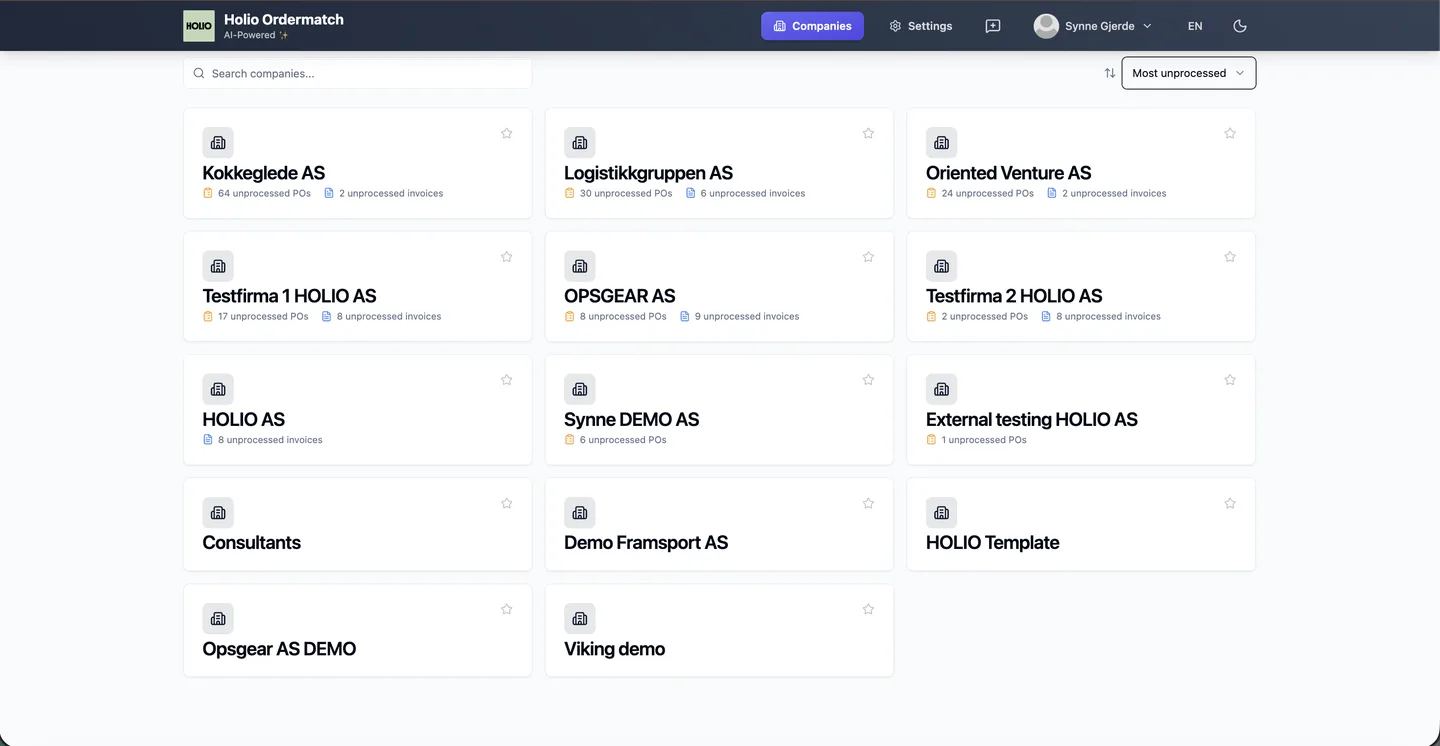
You land on the company picker, which shows the companies your Visma.net Admin access gives you. Star the ones you work in most to keep them at the top, sort by Most unprocessed or by name, and search if the list is long. Each card says how many unprocessed purchase orders and invoices the company has.
1. Find the invoice for the order
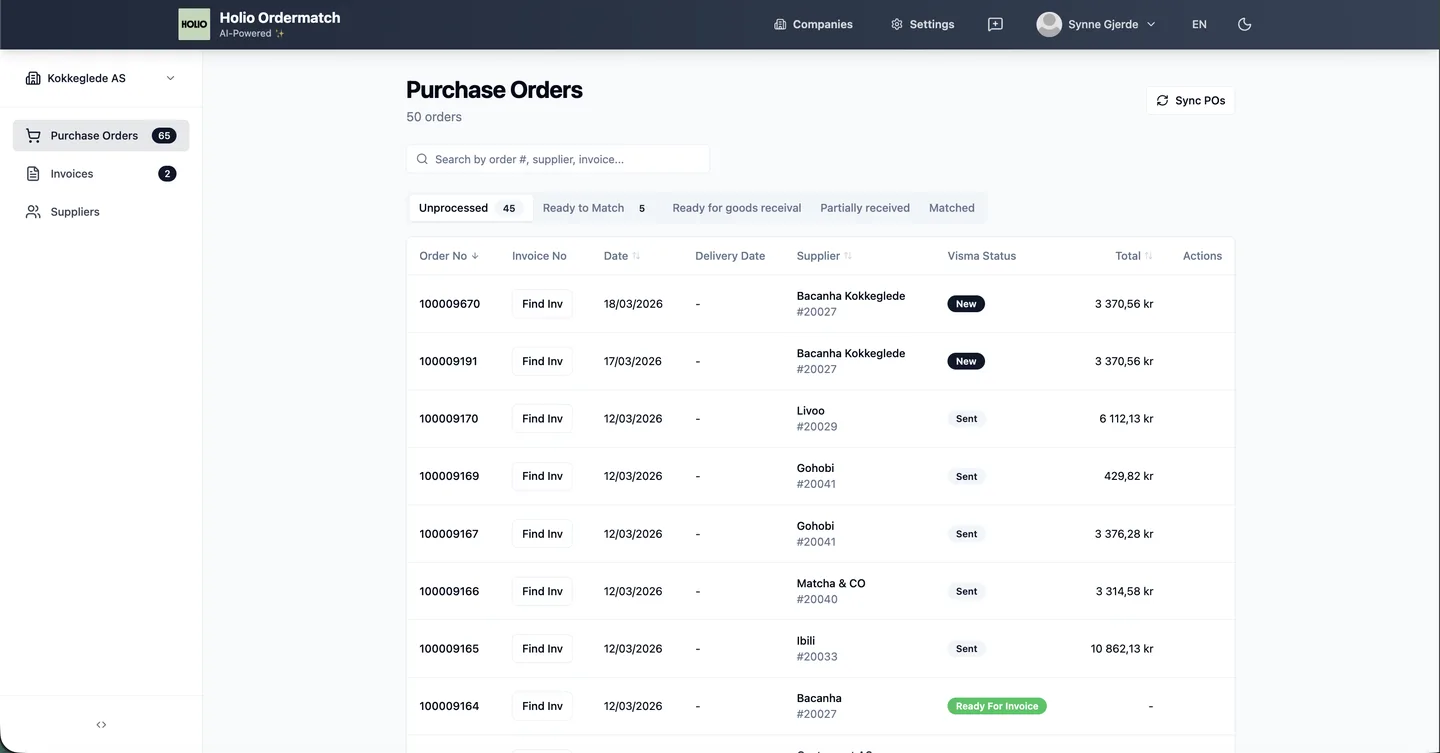
Open a company and you get its Purchase Orders on the Unprocessed tab: orders that have no matching invoice yet, or that Ordermatch could not match on its own.
Matching one by hand also trains the AI, so it does better the next time an invoice or an order arrives from that supplier.
Click Find Inv on the order you want to deal with. A dialog opens with the unprocessed invoices, filtered to the order's own supplier by the Filter by Purchase order Supplier checkbox — clear it to see every invoice.
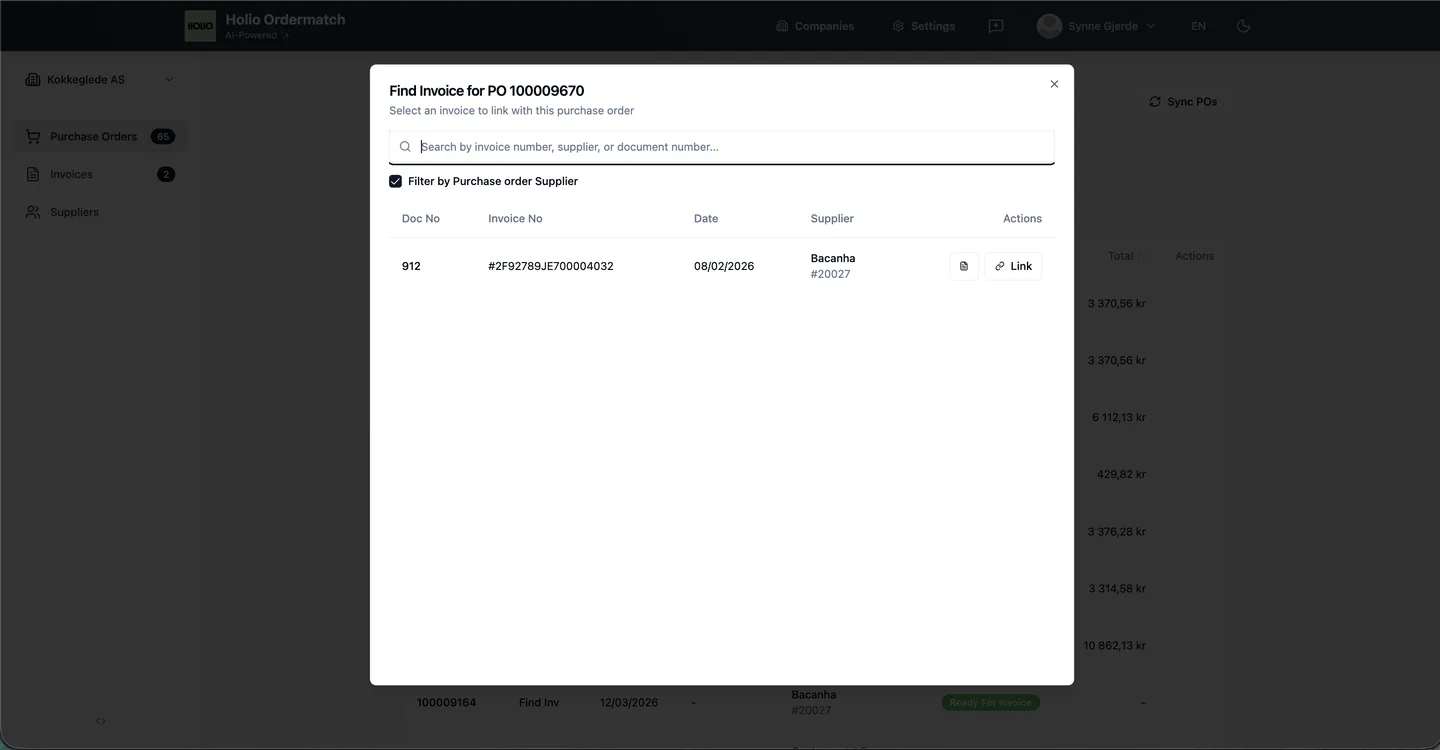
Found the right one? Click Link. The order and the invoice move to Ready to Match.
2. Verify the match
Open the Ready to Match tab. It holds every order and invoice that has been linked, whether automatically or by hand. Wrong invoice on an order? Click the × beside the invoice number and it goes back to Unprocessed.
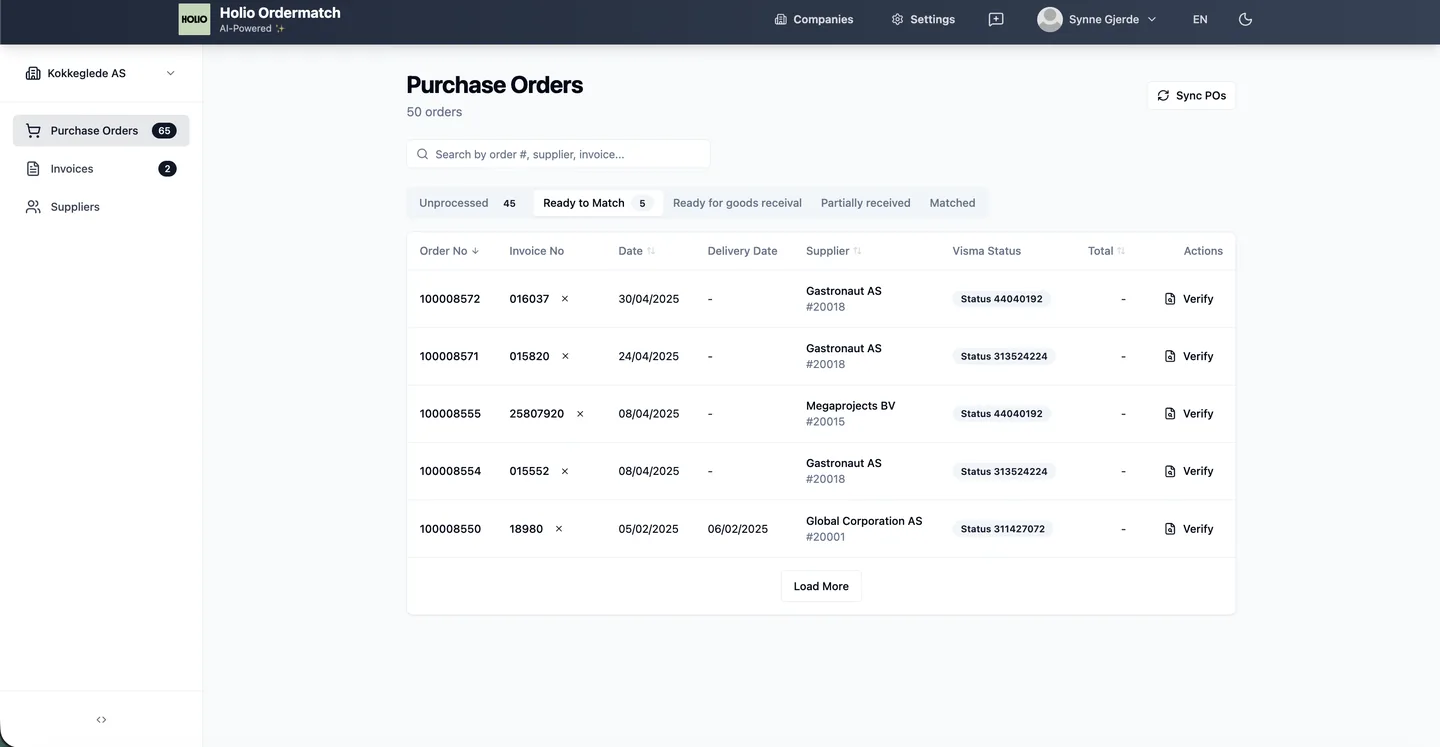
If the pair is right, click Verify. Ordermatch reads both documents and checks that the totals, quantities and units agree. Whatever does not agree, it tells you about on the Verification Results screen.
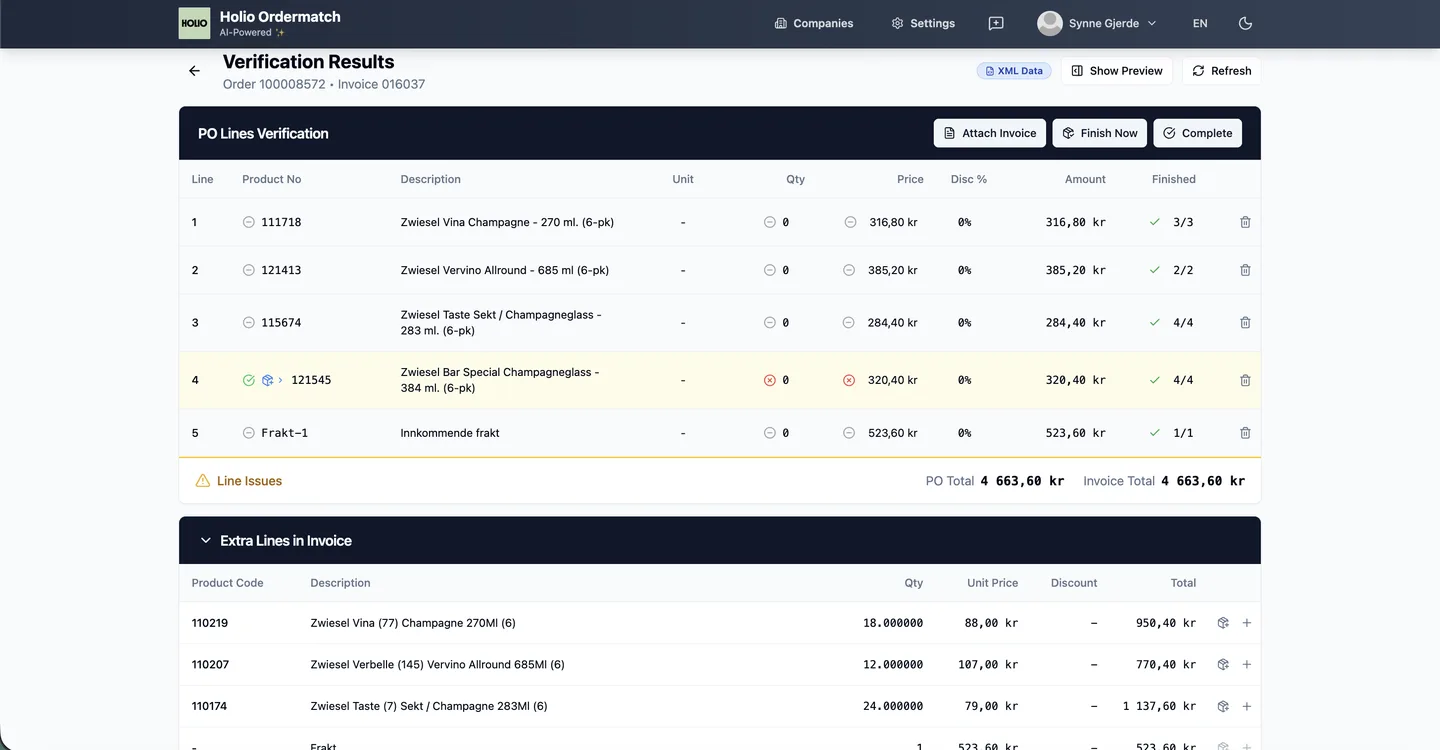
- See both sides. Show Preview, top right, puts the order lines and the invoice side by side.
- Lines the invoice has and the order does not are listed under Extra Lines in Invoice, and you can add them to the order from there.
- Attach Invoice and Finish Now cover the extra invoice and the goods receipt, for when you do all of it in one pass.
- Figures that disagree can be corrected here — click the amount to edit it. Useful when more items were ordered afterwards, or when the order is in a foreign currency and needs updating. You can change the price on the purchase order and set a new purchase price.
3. Complete it
Everything look right? Click Complete. Ordermatch creates the batch in the accounts with the correct invoice number and updates stock with the correct values.
Questions? Get in touch at hello@holio.ai and we will answer quickly — or book a meeting.