1. Holio Shipping for WooCommerce: Get started
Holio Shipping makes it easy to add and manage shipping options in WooCommerce. Configure carriers, prices, and rules for a smooth checkout.
Everything you need to set up shipping options.
Here is a complete step-by-step guide to how you install and configure the Holio Shipping plugin, available on WordPress.org. For what the integration does and what it costs, see Holio Shipping for WooCommerce.
1. Install the plugin
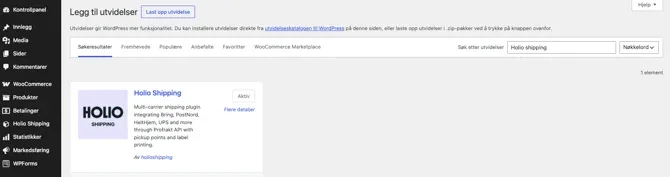
Go to Plugins → Add New, search for Holio Shipping, and click Install Now. Confirm by clicking Activate. You will then find Holio Shipping in the menu on the left.
2. Configure the API
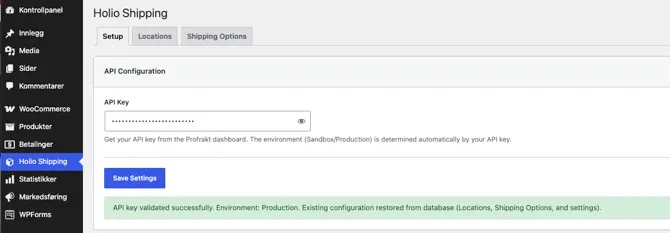
Open Holio Shipping and go to the Setup tab.
Enter your Profrakt API key — you will find it in the Profrakt dashboard, under Settings. Click Save Settings. The plugin confirms the key and tells you which environment it resolved to; Sandbox or Production is determined automatically by the key, so there is nothing to switch.
Under Order Processing you can set rules for creating and printing shipping labels automatically, and optionally assign a printer for direct label printing. That last part requires a Profrakt Skyprinter.
NB! If you do not want direct printing with a Profrakt Skyprinter, you can still print labels on any other printer — it just cannot be configured in this step. Instead, print the label when you complete an order with Holio Shipping: it opens either as a PDF or in a new tab, so you print it the way you are used to.
3. Add locations
Go to the Locations tab and click Add location. Choose a sender (managership) from your Profrakt account, and set one location as the default for returns.
4. Configure shipping options
Go to the Shipping Options tab and click Add Shipping Option.
- Choose carrier and shipping method. Optionally give the option a name of your own — this is the name the customer sees at checkout — and a short description. Carriers include Bring, PostNord, HeltHjem and UPS; international shipments go with UPS.
- Choose the price. Use the Profrakt API for automatic rate calculation, the API plus a markup, or a fixed price.
- Set price rules, if any. You can offer free shipping above a given amount, or build your own rules based on order value or weight.
- Limit when the option appears (optional). Set rules for weight, postcode or order total if the option should only be available under certain conditions.
- Choose additional services. Enable services such as pickup point, home delivery, ID check, or anything else the carrier supports.
- Save and activate. Click Save Changes and make sure the option is enabled. It will then be available in your shop whenever its criteria are met.
Remember to make the shipping method visible by switching its toggle to green, as shown below.

5. Enable the shipping method in WooCommerce
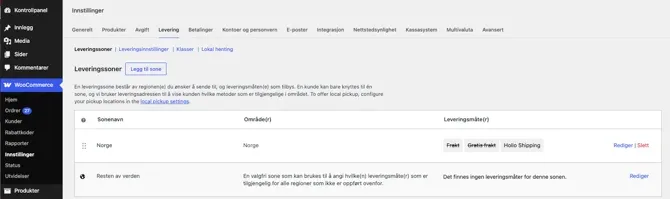
Go to WooCommerce → Settings → Shipping and open the shipping zone you want. Add Holio Shipping if it is not already listed, by clicking Add shipping method.
Shipping abroad
You can ship internationally from Norway with UPS. Create a shipping zone for the countries you ship to, and make only UPS available in that zone.
NB! We always recommend doing a few test orders in your shop to check that everything works the way you want it to.
Set up and ready to ship? 2. Holio Shipping for WooCommerce: Send your first order covers booking the shipment, printing the label and handling returns.
Questions? Get in touch at hello@holio.ai and we will answer quickly — or book a meeting.