2. Holio Shipping for WooCommerce: Send your first order
Book the shipment, print the label and handle returns — everything that happens after an order comes in.
Everything that happens after the order comes in.
This is the second of two guides. If you have not installed and configured the plugin yet, start with 1. Holio Shipping for WooCommerce: Get started.
1. Open the order
In WooCommerce, open the order you want to ship and scroll down. The Holio Shipping panel sits on the right, under Pending Holio Shipments, and shows the shipment that will be booked: warehouse, weight, number of parcels and the estimated cost.
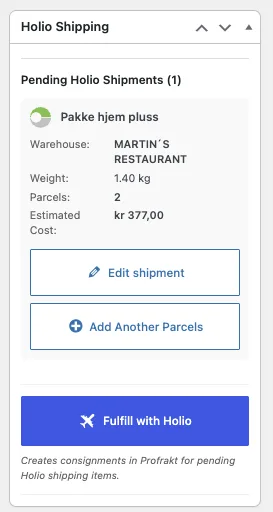
- Change something before booking? Click Edit shipment.
- Shipping in more than one box? Click Add Another Parcels — you get one label per parcel.
NB! Not every shipping option allows more than one parcel. That is the carrier's limit rather than the plugin's; PostNord – Parcel Locker is one example. If you need another label after booking, use Reprocess — but read step 3 first.
2. Fulfill the order
Click Fulfill with Holio. The plugin creates the consignments in Profrakt for every pending Holio shipping item on the order.
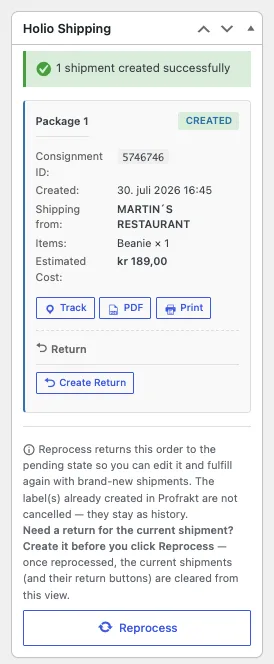
Each package then shows its consignment ID, when it was created, who it ships from, the items and the estimated cost — with three actions:
- Track — follow the shipment.
- PDF — download the label.
- Print — send it straight to the printer.
3. Returns, and one thing to do in the right order
Under Return, click Create Return to make a return shipment for the package.
NB! Create the return before you reprocess. Reprocess puts the order back in the pending state so you can edit it and fulfill it again with brand-new shipments. Labels already created in Profrakt are not cancelled — they stay as history — but the current shipments disappear from this view, and their return buttons go with them.
Tips
- With a Profrakt Skyprinter, the label prints by itself when you click Fulfill with Holio — as long as automatic printing is switched on under Setup in the Holio Shipping app.
- Without one, print the PDF instead. Nothing else about the flow changes.
- Want the order to change status when you fulfill it? That is switched on in the same place, under Setup.
NB! We always recommend doing a few test orders in your shop to check that everything works the way you want it to, and reading both guides before you start.
Questions? Get in touch at hello@holio.ai and we will answer quickly — or book a meeting.